21 Digital Art Tips for Beginners: Unleash Your Inner Procreate Picasso!
21 Digital Art Tips for Beginners: Unleash Your Inner Procreate Picasso!
Hello fellow art adventurers! Welcome, welcome! So, you've got Procreate tingling in your fingers, ready to conjure digital masterpieces? Excellent! This is where the magic truly begins. I remember the giddy excitement I felt diving into digital art for the first time. It's a canvas without limits, a studio in your pocket. But it can also feel a tad overwhelming, right? Fear not! I've gathered some sparkling Procreate tips, tricks, and insights to help you navigate this creative wonderland. Let's embark on this artistic journey together, shall we?
1. Embrace the Power of Layers: Your Digital Safety Net

Think of layers as transparent sheets of acetate stacked on top of each other. This, my friends, is your undo button on steroids! They allow you to work on different elements of your artwork independently, without affecting other parts. You can add color, details, and shadows without fear of messing up your initial sketch. It's like having a superpower!
Here's how layers can transform your process:
- Experiment Fearlessly: Try out different color palettes, textures, and effects on separate layers. If you don't like it, poof! It's gone.
- Non-Destructive Editing: Move, transform, and adjust individual elements without affecting the rest of your artwork.
- Complex Compositions Made Easy: Build up your artwork piece by piece, creating depth and visual interest.
- Clipping Masks: These are your new best friends. Clipping masks let you apply textures, patterns, or colors to a specific area of a layer, creating a beautiful and controlled effect.
2. Mastering the Art of the Brush: Exploration is Key

Procreate's brush library is a treasure trove of textures and possibilities! Don't be afraid to experiment. Seriously, dive in! Each brush has its own unique feel and characteristic. Try them all! You might just discover your new favorite tool. Customizing brushes is another rabbit hole of creative joy. Change the shape, grain, stroke properties – the possibilities are truly endless!
Brush Exploration Checklist:
- Explore the Defaults: Watercolor, Oil Paint, Technical Pen, 6B Pencil – get acquainted with the classics.
- Download Custom Brushes: There are countless free and paid brush packs available online. Treat yourself!
- Tinker with Settings: Adjust the size, opacity, spacing, and jitter of your brushes to achieve different effects.
- Create Your Own: Don't be intimidated! Custom brushes can be tailored to your specific style and needs.
3. The Magic of Color: Harmony and Contrast

Color can evoke emotions, tell stories, and create atmosphere. Understanding color theory is like unlocking a secret language of art. Experiment with different color palettes. Complementary colors (opposites on the color wheel) create vibrancy, while analogous colors (next to each other) create harmony.
Color Harmony Tips:
- Use a Color Palette Generator: There are many online tools that can help you create harmonious color schemes. Coolors.co is a fantastic resource.
- Refer to Real Life: Observe the colors in nature, in photographs, and in other works of art.
- Trust Your Gut: Don't be afraid to experiment and break the rules. Sometimes the most unexpected color combinations can be the most striking.
- Limited Palette Challenges: Try creating artwork using only a few colors. This can force you to be more creative and resourceful.
4. The All-Powerful Selection Tool: Precision and Control
The Selection Tool is your best friend when you need to isolate specific areas of your artwork. Use it to select and modify individual elements, add gradients, or apply textures. Procreate offers several selection options, including freehand, automatic, and rectangular selections. Each has its own strengths and weaknesses.
Selection Tool Mastery:
- Freehand Selection: Perfect for organic shapes and intricate details.
- Automatic Selection: Quickly select areas with similar colors.
- Rectangular/Elliptical Selection: Ideal for geometric shapes and precise selections.
- Feathering: Soften the edges of your selections for a more seamless blend.
5. Gradients: Adding Depth and Dimension

Gradients are a fantastic way to add depth and dimension to your artwork. They can create the illusion of light and shadow, add visual interest, and create smooth transitions between colors. Procreate offers several ways to create gradients, including the Gradient Map and the Gaussian Blur.
Gradient Techniques:
- Gradient Map: Map colors to the tonal range of your artwork. This can create dramatic and unexpected effects.
- Gaussian Blur: Blur the edges of your colors together to create a soft gradient effect.
- Airbrush: Use a soft airbrush to gradually blend colors together.
- Overlay Layers: Create subtle gradients by layering colors with different opacities.
6. The Undo Button: Your Lifesaver!

Ah, the undo button! Ctrl+Z (or two-finger tap on the screen). Use it often and without shame! It's there to help you experiment, to recover from mistakes, and to explore new possibilities. Don't be afraid to make mistakes. That's how we learn and grow as artists!
7. Perspective: Creating Realistic Depth

Understanding perspective is crucial for creating realistic and believable artwork. Perspective is the technique of representing three-dimensional objects on a two-dimensional surface in a way that appears natural and realistic. Procreate offers a perspective guide to help you create accurate and convincing perspective drawings.
Perspective Fundamentals:
- One-Point Perspective: All lines converge at a single vanishing point on the horizon line.
- Two-Point Perspective: Lines converge at two vanishing points on the horizon line.
- Three-Point Perspective: Lines converge at three vanishing points (two on the horizon line and one above or below).
- Procreate's Perspective Guide: Use the perspective guide to create accurate and consistent perspective drawings.
8. Reference Images: Inspiration and Accuracy

Don't be afraid to use reference images! They are your allies, your muses! They can help you understand anatomy, lighting, and composition. Use reference images to study the details of your subject and to improve your accuracy. There is absolutely no shame in using references – even the masters did it!
9. Experiment with Different Styles: Find Your Voice
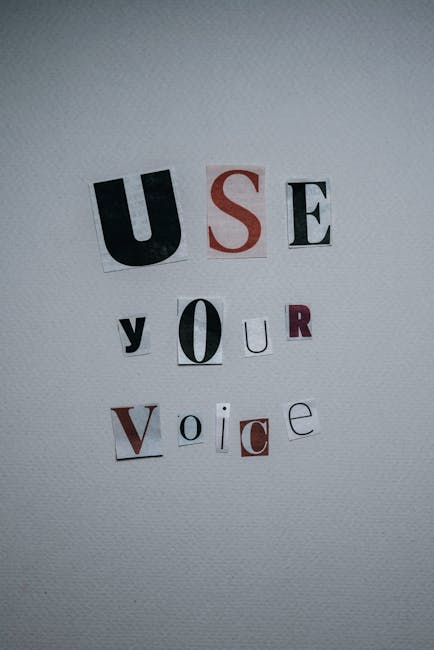
Don't be afraid to experiment with different art styles! Try drawing in a cartoon style, a realistic style, or an abstract style. Explore different techniques and mediums. The more you experiment, the more you'll discover what you enjoy and what you're good at. And most importantly, you'll find your own unique artistic voice.
10. Time-Lapse Recording: Relive Your Creative Process
Procreate automatically records a time-lapse video of your artwork as you create it. This is a fantastic way to review your process, identify areas for improvement, and share your work with others. It's like watching your own personal art movie!
Time-Lapse Tips:
- Share Your Process: Post your time-lapses on social media to connect with other artists and inspire others.
- Analyze Your Workflow: Review your time-lapses to identify areas where you can improve your efficiency.
- Use as a Study Tool: Watch time-lapses of other artists to learn new techniques and approaches.
11. The QuickShape Tool: Perfect Shapes Every Time

Struggling to draw a perfect circle or a straight line? Procreate's QuickShape tool has you covered! Simply draw a shape and hold your pen at the end. Procreate will automatically snap it into a perfect shape. It's like magic!
12. The Liquify Tool: Warp Reality at Your Fingertips

Want to subtly adjust a character's expression or dramatically distort an entire landscape? The Liquify tool is your go-to! Push, twist, pinch, expand – the possibilities are endless (and often hilarious!). Use it sparingly for subtle tweaks or go wild for surreal effects.
13. Mastering the Blend Modes: Layering Effects Like a Pro
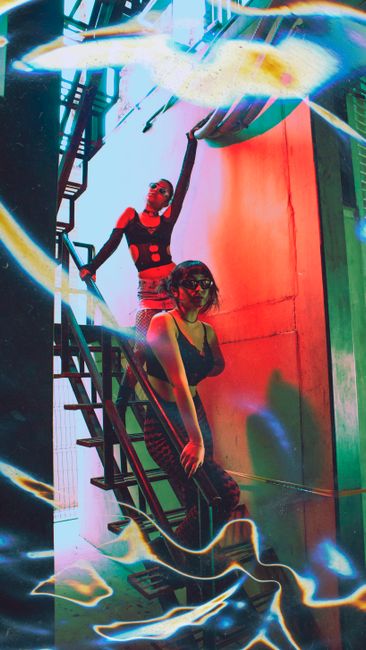
Blend modes are like secret sauces that can transform your artwork in seconds. Experiment with different blend modes on your layers, such as Multiply, Overlay, Screen, and Color Dodge. Each blend mode interacts with the layers below in a unique way, creating a variety of effects. It's a playground for visual experimentation!
14. Animation Assist: Bring Your Artwork to Life
Want to add a little wiggle or a full-blown animated sequence to your artwork? Procreate's Animation Assist is surprisingly powerful. It's perfect for creating simple GIFs or more complex animations. Even a small animation can add a huge amount of charm and personality to your work.
15. The Power of Texture: Adding Realism and Depth
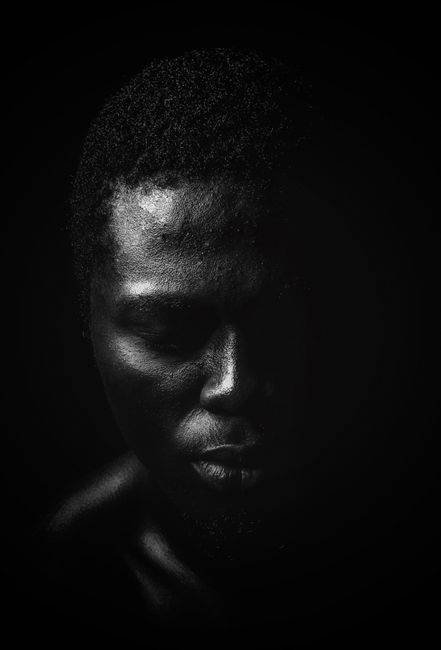
Texture can make your digital art feel more tangible and alive. Experiment with adding textures to your artwork using brushes, clipping masks, or even importing textures from photographs. A little bit of texture can go a long way in adding depth and realism to your work.
16. Learn Keyboard Shortcuts (Even on an iPad!): Speed Up Your Workflow

While Procreate is designed for touch, using a keyboard can significantly speed up your workflow. Connect a Bluetooth keyboard to your iPad and learn some basic shortcuts, such as Command+Z for undo, Command+Shift+Z for redo, and Command+E for merging layers. Your fingers (and wrists) will thank you!
17. The Gestural Interface: Embrace the Intuition

Procreate's gestural interface is designed to be intuitive and seamless. Learn the common gestures, such as pinching to zoom, two-finger tap to undo, and three-finger tap to redo. Mastering these gestures will allow you to work more fluidly and efficiently.
18. Stay Organized: Name Your Layers!

Trust me on this one. As your artwork becomes more complex, you'll be grateful you took the time to name your layers. It will save you countless hours of frustration when you need to find a specific element or make a quick adjustment. "Sky," "Character," "Background Details" – simple and descriptive is key!
19. Back Up Your Work: Protect Your Masterpieces!

Digital art is wonderful, but it's also vulnerable to data loss. Make sure to back up your Procreate files regularly to iCloud, Dropbox, or an external hard drive. The heartbreak of losing hours of work is a pain no artist should endure!
20. Share Your Art: Connect with the Community

Don't be shy! Share your artwork with the world! Post your creations on social media, join online art communities, and get feedback from other artists. Sharing your work can be both terrifying and incredibly rewarding. It's a great way to connect with other creatives, learn new things, and build your confidence.
21. Practice, Practice, Practice: The Key to Mastery

Like any skill, digital art takes time and practice. Don't get discouraged if your first few attempts aren't perfect. Keep experimenting, keep learning, and keep creating. The more you practice, the better you'll become. And most importantly, have fun! Art should be a source of joy and inspiration. So, grab your Apple Pencil, fire up Procreate, and let your imagination run wild!
And that's a wrap, my artistic companions! I hope these tips have sparked your creativity and empowered you to create amazing art with Procreate. Remember, the most important thing is to have fun and enjoy the process. Now go forth and create something beautiful!
Post a Comment