Digital Art for Beginners 🍃 Unleash Your Inner Artist: A Beginner's Guide & Procreate Tutorial

Digital Art for Beginners 🍃 Unleash Your Inner Artist: A Beginner's Guide & Procreate Tutorial
Hello, fellow creatives! ✨ Have you ever felt a flutter in your heart, a yearning to bring your imagination to life? Maybe you've doodled in the margins of notebooks, dreamt in vibrant colors, or simply felt the urge to create. If so, welcome! You've stumbled upon the perfect starting point for your digital art journey.
Digital art, at its heart, is simply art created using digital tools. Think of it as painting, drawing, sculpting, or even photography, but with the flexibility and magic of technology. No need for messy paints, endless erasers, or trips to the art store. Just your imagination and a digital canvas!
This isn't just about learning software; it's about unlocking a new way to express yourself, to tell stories, and to connect with the world around you. I remember the first time I created a piece I was truly proud of digitally - it felt like magic. I want to help you experience that too!
Why Choose Digital Art? The Allure of Pixels
The digital art realm is vast and wonderful. But why choose it over traditional methods? Well, my friend, let me illuminate the path:
1. Undo is Your Best Friend: Ever wish you could rewind a mistake in traditional art? Digital art lets you do just that! The undo button is a gift from the creative gods. Experiment freely without the fear of irreversible errors.
2. Versatility at Your Fingertips: A single tablet can hold an endless supply of brushes, pencils, paints, and textures. Switch between a fine-liner and a watercolor wash with a simple tap.
3. Portability & Convenience: Imagine carrying your entire art studio in a backpack! Digital art allows you to create anywhere, anytime. Coffee shop sketches? Plane ride paintings? Yes, please!
4. Sharing is Caring: Digital art makes sharing your work with the world incredibly easy. Post on social media, create prints, or even sell your art online. The possibilities are endless!
5. Experimentation Without Limits: Explore different styles, techniques, and mediums without the cost and hassle of purchasing physical supplies. Dare to be bold, to try new things, and to discover your unique artistic voice.
Essential Tools: Your Digital Art Arsenal
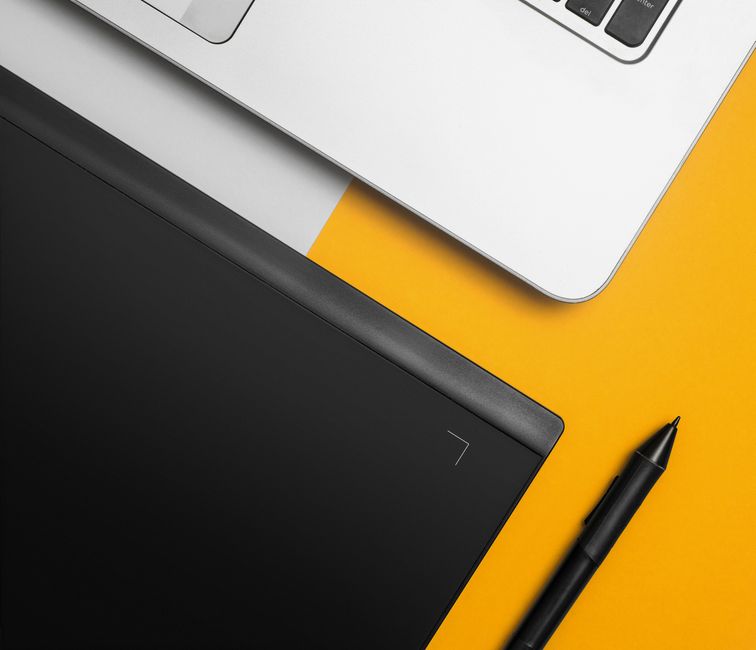
So, what do you need to embark on this pixelated adventure? Here's a breakdown of the essential tools:
1. A Tablet (or iPad) This is your digital canvas. Options range from entry-level tablets with screens to more advanced pen displays that connect to your computer.
2. A Stylus/Pen This is your digital paintbrush! Look for a stylus with pressure sensitivity for nuanced lines and shading.
3. Software This is where the magic happens! There are many fantastic programs to choose from. We'll be focusing on Procreate in this tutorial, but other popular options include Adobe Photoshop, Clip Studio Paint, and Krita (which is free!).
4. A Creative Spirit The most important tool of all! Bring your imagination, your curiosity, and your willingness to learn. The rest will follow.
Don't feel pressured to buy the most expensive equipment right away. Start with what you can afford and upgrade as your skills and needs evolve. The best tool is the one you'll actually use.
Choosing Your Software: Procreate Power!

While many amazing digital art programs exist, for this tutorial, we'll be diving into the wonderful world of Procreate. It's user-friendly, incredibly powerful, and specifically designed for iPad. Here's why I love it:
Intuitive Interface: Procreate's interface is clean, simple, and easy to navigate, even for beginners.
Powerful Features: Despite its simplicity, Procreate boasts a wealth of advanced features, including layer blending modes, perspective guides, animation tools, and much more.
Affordable Price: Unlike subscription-based software, Procreate is a one-time purchase, making it a budget-friendly option for aspiring artists.
Apple Pencil Integration: Procreate is designed to work seamlessly with the Apple Pencil, providing a natural and responsive drawing experience.
Vibrant Community: Procreate has a thriving online community where you can find tutorials, inspiration, and support from fellow artists.
Now, let's get our hands dirty (or should I say, pixel-y!)
Procreate Tutorial: A Leaf Illustration - Step-by-Step

Let's create a simple yet beautiful leaf illustration in Procreate. This tutorial will cover the basic tools and techniques you need to get started. Open Procreate and let's begin!
Step 1: Create a New Canvas
- Tap the "+" button in the top right corner of the Procreate gallery.
- Choose a canvas size. A square canvas (e.g., 2048 x 2048 pixels) is a good starting point. You can always resize it later.
Step 2: Sketch the Basic Shape
- Select the Sketching brush set and choose the "6B Pencil" brush. This brush mimics the feel of a real pencil.
- Lightly sketch the outline of your leaf. Don't worry about perfection! Just focus on capturing the general shape and proportions. Think about the type of leaf you want to create – is it round, elongated, jagged, or smooth?
Step 3: Line Art Refinement
- Create a new layer by tapping the "+" button in the Layers panel (the two stacked squares icon in the top right corner). Creating a new layer keeps your sketch separate from your final line art.
- Reduce the opacity of your sketch layer. Tap the "N" on the sketch layer and adjust the slider to around 30-50%.
- On the new layer, use a more defined brush, like the "Technical Pen" from the Inking brush set. Carefully trace over your sketch, refining the lines and adding details like veins. Vary the line weight (thickness) to add visual interest. Press harder for thicker lines and lighter for thinner lines.
- Feel free to add small imperfections and organic details to your lines. This will make your leaf look more natural and less sterile.
- Once you're happy with your line art, hide the sketch layer by tapping the checkbox next to it in the Layers panel.
Step 4: Base Color
- Create a new layer below the line art layer. Drag the new layer below your line art layer in the Layers panel. This ensures that your color doesn't overlap your lines.
- Choose a color. Tap the color circle in the top right corner to open the Color panel. Select a vibrant green for your leaf's base color.
- Select the ColorDrop tool (it looks like a dot) from the top toolbar. Drag the ColorDrop tool from the color circle onto the area inside your leaf outline. This will fill the entire area with your chosen color.
- If the color bleeds outside the lines, adjust the ColorDrop Threshold by dragging your finger left or right on the canvas while holding the ColorDrop tool over the area you want to fill.
Step 5: Shading and Highlights
- Create a new layer above the base color layer.
- Clip the new layer to the base color layer. Tap the new layer, then select "Clipping Mask." This ensures that any shading or highlights you add will only appear within the boundaries of the base color layer.
- Choose a slightly darker shade of green for shading.
- Select a soft brush, like the "Soft Airbrush" from the Airbrushing brush set.
- Gently add shadows to the areas of the leaf that would naturally be in shade, such as near the veins or along the edges. Use light, overlapping strokes to build up the shading gradually.
- To add highlights, choose a slightly lighter shade of green. Use the same airbrush technique to add highlights to the areas of the leaf that would catch the light.
- Experiment with different blending modes for your shading and highlight layers. Try "Multiply" for shading and "Add" or "Screen" for highlights. These blending modes can create interesting and dynamic effects.
Step 6: Adding Texture (Optional)
- Create a new layer above the shading and highlight layers. Clip this layer to the base color layer as well.
- Choose a textured brush from the Textures brush set, such as "Leather."
- Select a subtle color and gently apply the texture to the leaf. Reduce the opacity of the texture layer if the effect is too strong.
Step 7: Background (Optional)
- Create a new layer below all your other layers.
- Choose a background color that complements your leaf.
- Use the ColorDrop tool to fill the background with your chosen color.
- You can also add a simple gradient or texture to the background to make it more interesting.
Step 8: Final Touches
- Take a step back and assess your artwork. Make any final adjustments to the colors, shading, or highlights.
- Experiment with different layer blending modes to achieve unique effects.
- Don't be afraid to try new things and have fun!
Congratulations! You've created your first digital leaf illustration in Procreate. Save your masterpiece and share it with the world!
Tips and Tricks for Budding Digital Artists

Here are a few extra pearls of wisdom to guide you on your digital art journey:
Practice Makes Progress: The more you practice, the better you'll become. Dedicate some time each day or week to creating art, even if it's just for a few minutes.
Explore Different Styles: Don't limit yourself to one style or technique. Experiment with different brushes, colors, and approaches to discover what resonates with you.
Find Inspiration: Look to other artists for inspiration, but don't be afraid to develop your own unique style. Observe the world around you, take photos, and keep a sketchbook filled with ideas.
Learn the Fundamentals: Understanding the fundamentals of art, such as composition, color theory, and anatomy, will greatly improve your artwork.
Don't Be Afraid to Experiment: Digital art is all about experimentation. Don't be afraid to try new things, make mistakes, and learn from them.
Join the Community: Connect with other digital artists online. Share your work, ask questions, and learn from each other.
Have Fun! The most important thing is to enjoy the process of creating art. Don't put too much pressure on yourself and remember to celebrate your progress.
The Journey Ahead: Embrace the Process

Digital art is a journey, not a destination. There will be challenges and setbacks along the way, but don't let them discourage you. Embrace the learning process, celebrate your progress, and never stop creating.
So, go forth, my creative friend, and unleash your inner artist! The world is waiting to see what you'll create. And remember, the most important tool you have is your own unique imagination. Happy creating! ✨
Post a Comment